The 10 Windows Mouse Cursor States: Complete Reference (2026)
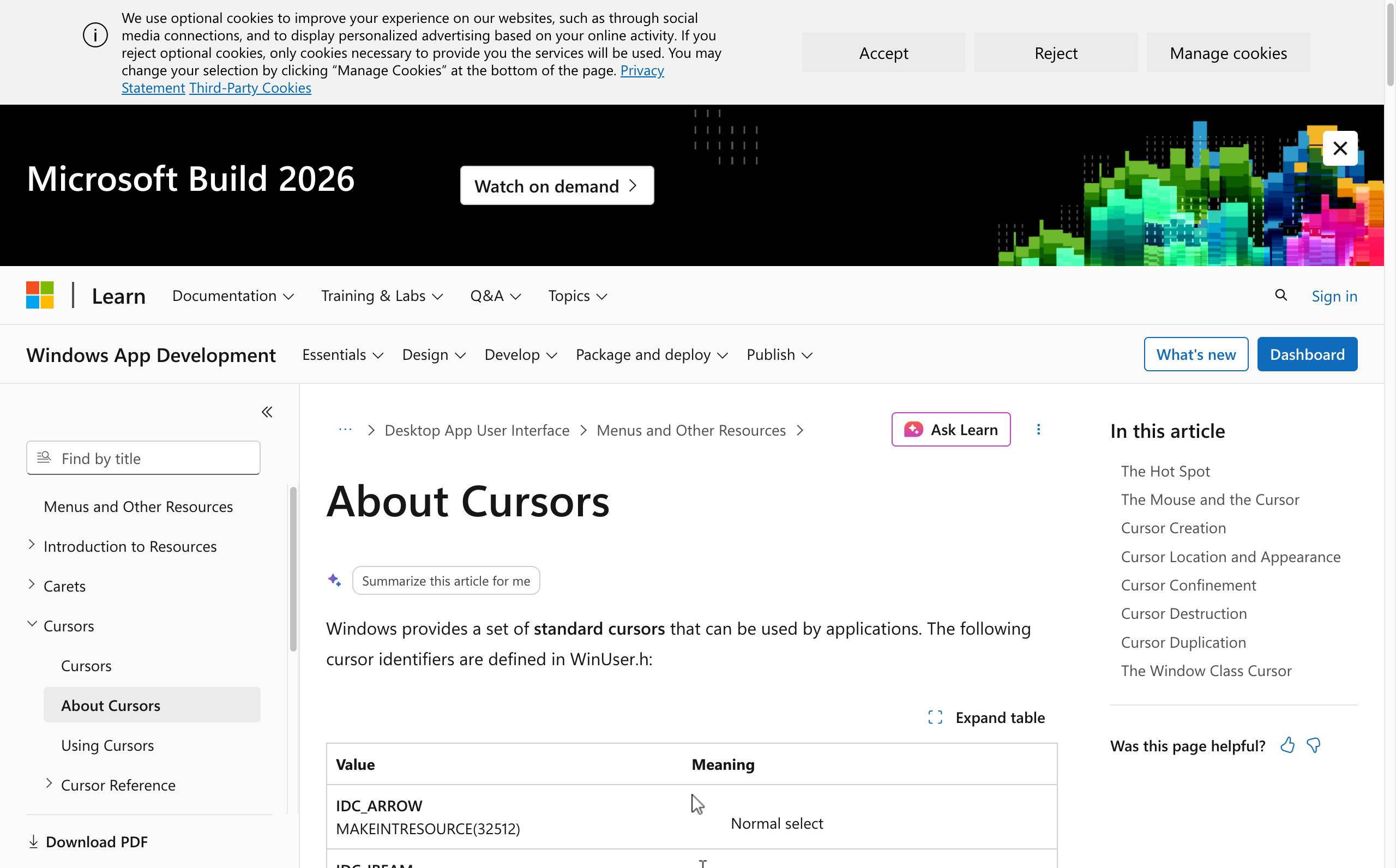
Windows 10 and Windows 11 use exactly 10 mouse cursor states that can be customized independently: (1) default arrow or normal select, (2) help select or link hand, (3) busy or loading, (4) working in background or app starting, (5) text select or I-beam, (6) precision or crosshair, (7) horizontal resize, (8) vertical resize, (9) diagonal resize 1 or NESW, and (10) diagonal resize 2 or NWSE. Each state is stored as a separate .cur file for static cursors or .ani file for animated cursors inside a cursor pack, with its own hotspot coordinate that defines the single active pixel used for click targeting. A complete Windows cursor pack must include all 10 states, and incomplete packs fall back to the default Windows cursor for the missing state, which is the most common cause of the "my cursor did not change" issue reported after install. Microsoft has used the same 10-state model since Windows 95 and the design has not changed in Windows 11 (Microsoft Learn about cursors). This complete reference covers all 10 states with their default filenames, hotspot coordinates, recommended sizes for high-DPI displays, and how Cursor Hero generates all 10 states together as a single downloadable ZIP.
Why Windows Has Exactly 10 Cursor States
Windows has had exactly 10 customizable cursor states since the Windows 95 release in 1995. The design has remained stable for 31 years and is preserved unchanged in Windows 11, because every application, dialog, and accessibility tool relies on those exact states to communicate context.
The semantic purpose is to encode what the user can do at the current cursor position. The arrow says "neutral area, click here." The I-beam says "editable text, position your caret." The hand says "hyperlink, navigate." The four resize cursors say "this edge is draggable." The crosshair says "pixel-precise tool." The two busy cursors say "system processing, you cannot interact yet."
Microsoft exposes these 10 states through the legacy Mouse Properties dialog, through Settings > Accessibility > Mouse pointer and touch, and through the Win32 API. The states map to canonical filenames (arrow.cur, ibeam.cur, wait.cur, etc.), so a pack is portable across Windows 10, Windows 11, and any app that respects the system scheme.
All 10 Windows Cursor States (Reference Table)
The canonical 10-state reference. Every Windows cursor pack should contain all 10 files. Missing files cause the default Windows cursor to appear in that state.
| # | State name | When shown | Default filename | Default hotspot | Recommended size |
|---|---|---|---|---|---|
| 1 | Normal select | Idle pointer, over non-clickable element | arrow.cur | (0, 0) top-left | 32x32 |
| 2 | Help select (link) | Over a hyperlink | help.cur | (0, 0) | 32x32 |
| 3 | Busy (loading) | App processing, indeterminate progress | wait.cur (animated) | (0, 0) | 32x32 |
| 4 | Working in background (app starting) | App launching but window still has focus | appstarting.cur (animated) | (0, 0) | 32x32 |
| 5 | Text select (I-beam) | Over editable text | ibeam.cur | (8, 8) center for I-beam | 32x32 |
| 6 | Precision select (crosshair) | Over precise-position tools (Photoshop pen, etc.) | cross.cur | (16, 16) center | 32x32 |
| 7 | Horizontal resize | Over horizontal edge of resizable window | ew.cur | (16, 16) center | 32x32 |
| 8 | Vertical resize | Over vertical edge of resizable window | ns.cur | (16, 16) center | 32x32 |
| 9 | Diagonal resize 1 (NESW) | Over top-left to bottom-right diagonal edge | nesw.cur | (16, 16) center | 32x32 |
| 10 | Diagonal resize 2 (NWSE) | Over top-right to bottom-left diagonal edge | nwse.cur | (16, 16) center | 32x32 |
(Source: Microsoft Learn about cursors, accessed 2026-06-27.)
The two diagonal resize cursors look identical at first glance but point in opposite directions. Windows uses them on opposite corners of a resizable window. State 3 (busy / wait) means you cannot interact with the processing app. State 4 (working in background / app starting) means a different app is launching but you can still use the foreground window. Most users never customize these two independently.
.cur vs .ani: Which Format Do You Need?
Both formats install through the same dialog and use the same 10-state filename convention. The difference is animation.
.cur (static cursor). A single-frame image with a hotspot coordinate. The smallest valid .cur file is around 100 bytes; a polished 48x48 design is typically 2 to 10 KB. Use .cur for any state that does not need to animate, which is most of them. The arrow, hand, I-beam, crosshair, and four resize cursors are typically static.
.ani (animated cursor). A RIFF container holding multiple frames plus per-frame timing metadata. A simple 4-frame .ani might be 4 KB; a complex 16-frame animation can reach 50 KB or more. Use .ani only for the two busy-related states, where animation communicates "system processing" more clearly than a static icon.
Windows 11 supports both formats in all 10 states. You can mix them, for example arrow.cur for default and wait.ani for the busy spinner. Cursor Hero currently generates static .cur packs (Cursor Hero pricing). RW-Designer's RealWorld Cursor Editor is the most widely used free tool for hand-editing both.
Hotspots Explained
The hotspot is the single pixel inside a cursor file that Windows treats as the click point. Get it wrong and your cursor clicks above, below, or to the side of where it appears to point. Default Windows hotspots are tuned for each state's purpose:
- Arrow, hand, busy, appstarting (states 1, 2, 3, 4): hotspot at (0, 0), top-left. The arrow tip points up-and-left, so the top-left is the click point.
- I-beam (state 5): hotspot at (8, 8), center. The I-beam is symmetric, so the center is the natural click point.
- Crosshair and the four resize cursors (states 6 through 10): hotspot at (16, 16), center. The resize cursors are symmetric double-headed arrows, so the center is the drag origin.
Cursor Hero sets the hotspot correctly for every state automatically. A wrong hotspot is one of the most common reasons hand-edited cursors feel "off" but you cannot immediately identify why. If you are turning your own image into a single cursor, the PNG to cursor converter lets you click the exact hotspot pixel and test it live before you download the .cur file.
Recommended Cursor Sizes by Display Type
Windows 11 supports cursor resolutions up to 48x48 pixels by default. Larger cursor assets can be created with dedicated cursor editors.
- 32x32 (standard): Default since Windows 95. Renders crisply on 1080p and 1440p monitors at 100% scaling. Adequate for most users.
- 48x48 (high-DPI): Windows 11 default for high-resolution displays. Renders crisply on 4K monitors and laptops at 125% to 200% scaling. Recommended minimum for Windows 11.
- 64x64 (accessibility): Approximately 4x the pixel area of the default 32x32 cursor. Recommended for low-vision users, 5K displays, or anyone who has trouble tracking a small pointer.
If your pack ships at 32x32 and looks blurry on a high-DPI Windows 11 display, try Windows pointer-size scaling or use a dedicated editor to create a larger pack.
For the install walkthrough, see How to Install Custom Cursors on Windows 11. For the full pillar guide, see the complete custom cursor Windows 11 guide.
How Cursor Hero Generates All 10 States
Cursor Hero generates a complete 10-state Windows cursor pack from a single text description. Type "minimal pastel with rounded corners" or "cyberpunk neon magenta and cyan" and Cursor Hero outputs a ZIP with all 10 static .cur files, the correct hotspot coordinates per state, and an install.inf, ready to extract and apply via Settings or the legacy Mouse Properties dialog.
Cursor Hero includes 1 successful free preview; failed attempts can be retried. One complete pack costs $2.99 once, or choose three complete packs for $4.99. Both are one-time offers and never expire, and any pack you already bought stays valid. For a deeper comparison of Cursor Hero versus cutecursors.com versus RealWorld Cursor Editor versus Stardock CursorFX, see the custom cursor Windows 11 guide.
FAQ
Q: What are the 10 Windows cursor states? A: The 10 states are (1) normal select or arrow, (2) help select or link hand, (3) busy or loading, (4) working in background or app starting, (5) text select or I-beam, (6) precision or crosshair, (7) horizontal resize, (8) vertical resize, (9) diagonal resize NESW, and (10) diagonal resize NWSE. A complete cursor pack must contain all 10.
Q: What is the difference between .cur and .ani? A: .cur is a single-frame static cursor. .ani is a multi-frame animated cursor with per-frame timing metadata, used for spinning indicators like the busy spinner. Both install through the same Windows dialog. Cursor Hero currently generates static .cur packs.
Q: What is a cursor hotspot? A: The hotspot is the single pixel inside a cursor file that Windows treats as the click point. It is set independently per state. The arrow and hand default to (0, 0) top-left because the arrow tip points up-left. The I-beam defaults to (8, 8) center. The four resize cursors and the crosshair default to (16, 16) center.
Q: What size should a cursor file be? A: Cursor size depends on the design and Windows display settings. Cursor Hero offers one successful preview at no charge; complete packs are one-time purchases.
Q: Can I use the same .cur file for all 10 states? A: Technically yes, Windows will accept a pack where every state points to the same file. But the result is confusing UX because the I-beam, hand, and resize cursors serve different semantic purposes. A proper pack uses 10 distinct files. Cursor Hero, cutecursors.com, and the major community packs all ship full 10-state sets.
Generate a 10-State Pack with Cursor Hero
If you want a custom Windows cursor pack that covers all 10 states and is yours alone, Cursor Hero generates one from a text description. Try one successful preview free; failed attempts can be retried, then buy one complete pack for $2.99, or choose three complete packs for $4.99 once. Describe what you want, get a ZIP with all 10 states and correct hotspots, install via the custom cursor install guide.
Sources & Citations
- Microsoft Learn — About Cursors — Windows cursor architecture, file format (.cur and .ani), 10 default cursor states, maximum resolution (accessed 2026-06-27).
- Microsoft Support — Change mouse settings in Windows — Official Microsoft walkthrough, point-of-entry for end-user cursor customization (accessed 2026-06-27).
- RW-Designer — RealWorld Cursor Editor — Real SERP-verified manual cursor editor, dominant free tool for hand-editing .cur and .ani since 2001.
- cutecursors.com — Real SERP-verified cursor pack library, primary source for downloadable Windows packs.
- Wikipedia — Cursor (user interface) — General cursor history and platform comparison (accessed 2026-06-27).
- Cursor Hero product spec, 2026 — 10-state generation claim (60-second pack export), hotspot automation, one-time offers.