Custom Cursor for Windows 11: Free Packs + 3-Step Install
Pick a pack, download it, install it. Each pack below replaces all 10 Windows pointers and comes with an installer, so you are done in about a minute.
This page is the download side of the job. If you would rather follow a screenshot for every click — or you are installing a single .cur file instead of a whole pack — the custom cursor Windows 11 install walkthrough is the step-by-step companion, and it also explains where the files land on disk.
1. Pick a cursor pack
Hover a card to try that pack's pointer, then download the one you like.
1. Neon Plasma
10 cursors · installer included
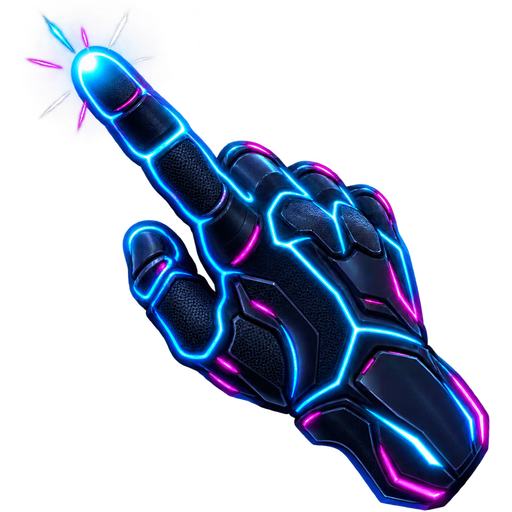


Glowing cyan-and-magenta energy cursors, made for dark wallpapers and gaming setups.
2. Monochrome Minimal
10 cursors · installer included
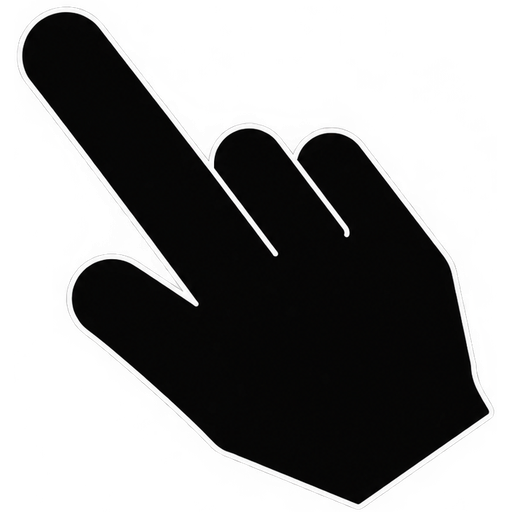
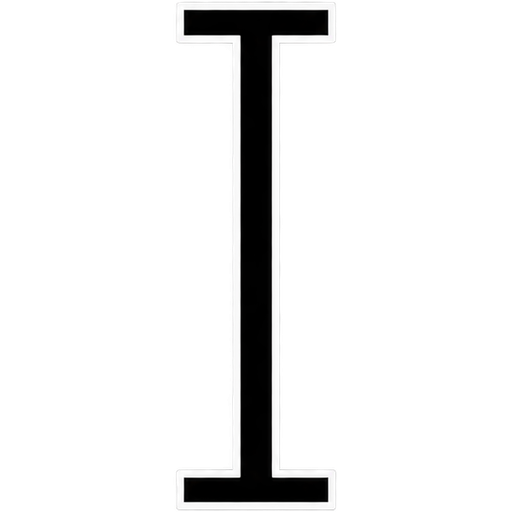

Solid black with a crisp white outline. Clean, sharp and easy to see on any background.
3. Kawaii Pastel
10 cursors · installer included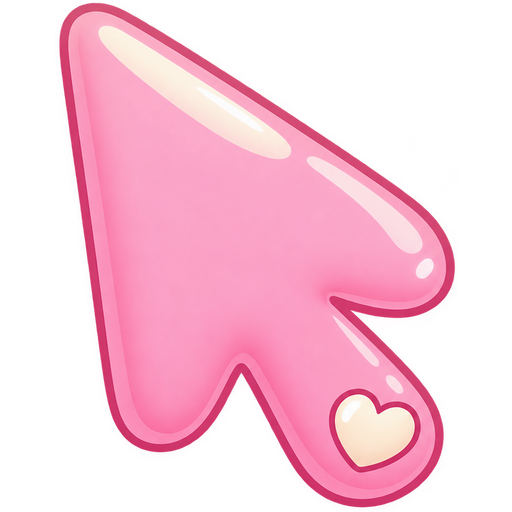

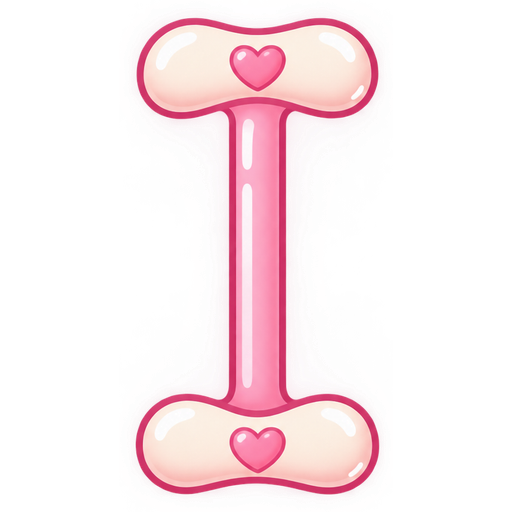

Soft pastel pink and cream with tiny hearts and stars. Cute without getting hard to read.
4. 8-Bit Pixel
10 cursors · installer included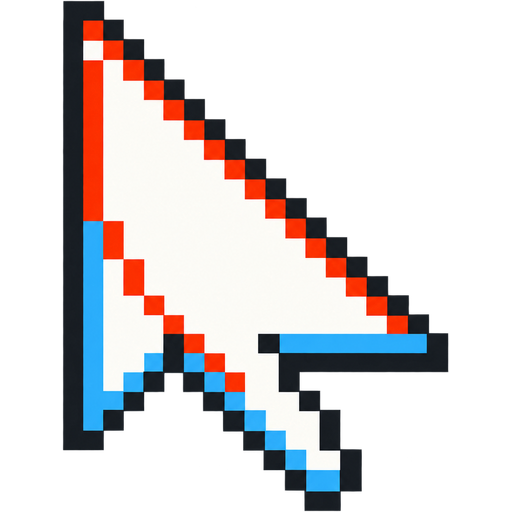
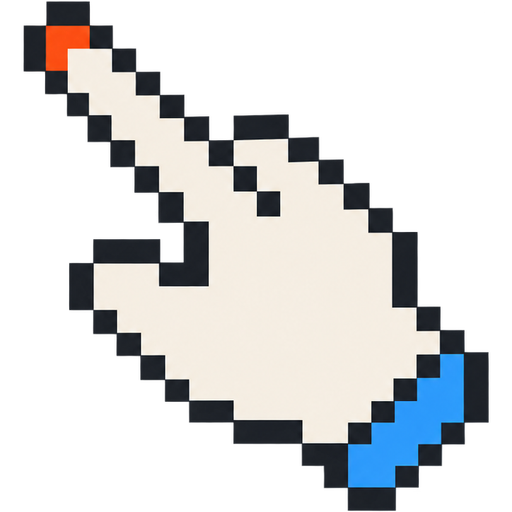
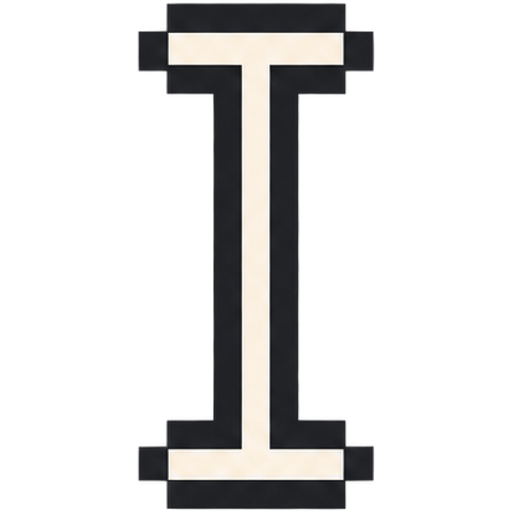

Chunky 8-bit pixel cursors with a limited palette, like an old-school game.
Hover a card and your pointer turns into that pack's arrow. Each zip holds 10 Windows .cur files plus Install.cmd: unzip it, double-click Install.cmd, then pick the scheme on the Pointers tab and click Apply. Free, no account.
Comparing styles first? Our ranked windows 11 cursors roundup scores each pack on style, install ease and download safety, so you can pick one and skip the trial-and-error.
Looking for more styles? The best mouse cursors for Windows 11 list adds 12 single cursors you can preview the same way.
2. Install it (3 steps)
- Unzip the download: right-click the zip and choose Extract All.
- Double-click
Install.cmdin the extracted folder. The screen flickers once while Windows reloads, then the Mouse Properties window opens by itself. - On the Pointers tab, choose the pack in the Scheme list and click Apply. Your cursor changes immediately.
No admin rights and no restart are needed. If Windows shows a "Windows protected your PC" or security warning for Install.cmd, see the full install guide, which also covers installing without the script.
Prefer to do it by hand?
Open Settings → Bluetooth & devices → Mouse → Additional mouse settings (or press Win + R and run main.cpl). On the Pointers tab, select a pointer role such as Normal Select, click Browse, pick the matching .cur file from the pack's cursors folder, repeat for the roles you want, then click Save As to keep it as a scheme and Apply.
Go back to the default cursor
Press Win + R, run main.cpl, open Pointers, choose Windows Default (system scheme) and click Apply.
3. Want your own design?
Describe the cursor you want in one sentence and the generator draws a matching 10-state pack, installer included. Your first successful preview is free.
Two game-themed sets come with full recipes and install steps: the Phantom Blade Zero cursor pack (jian and dao blades) and the Bey Rivals cursor pack (spinning-top rings for a Roblox battler).
The 10 Windows cursor states
A complete pack covers every pointer Windows uses, so no default cursor shows up mid-session:
| State | When you see it | File in the pack |
|---|---|---|
| Normal Select | Most of the time | Arrow.cur |
| Text Select | Over text you can type in | IBeam.cur |
| Link Select | Over links and buttons | Hand.cur |
| Busy | While something loads | Wait.cur |
| Precision Select | Drawing and selection tools | Crosshair.cur |
| Unavailable | Where you can't drop or click | No.cur |
| Vertical / Horizontal Resize | Window edges | SizeNS.cur, SizeWE.cur |
| Diagonal Resize 1 / 2 | Window corners | SizeNWSE.cur, SizeNESW.cur |
Where to download Windows 11 cursors
Every download on this page is a .cur pack for Windows 11 (and Windows 10). Nothing needs an account, and each pack covers all 10 pointer states so no default arrow shows up mid-session.
| What you download | What's inside | Best when |
|---|---|---|
| Pack gallery above | A complete 10-state pack plus Install.cmd, free for personal use | You want a new look in about a minute |
| Ranked roundup of windows 11 cursors | 12 single cursors, scored on style, install ease and download safety | You only want to swap one pointer |
| Cursor generator | A 10-state pack drawn from a one-sentence description | You want a design nobody else has |
Whichever route you take, the install is the same three steps below, and the files land in %LOCALAPPDATA%\Cursors so you can remove them later without touching Windows settings.
FAQ
Do I need admin rights?
No. The installer copies the cursors into your own user folder (%LOCALAPPDATA%\Cursors) and only changes your account's settings.
Will it work on Windows 10? Yes. The steps and the Pointers tab are the same on Windows 10.
The cursor didn't change after Install.cmd. What now? The Mouse Properties window needs one click from you: open Pointers, pick the scheme and click Apply. Windows doesn't let a script switch schemes on its own.
Can I use these packs for free? Yes, for personal use. Download as many as you like; no account is needed.