Free official pack · no account needed
Kawaii Pastel Cursor Pack for Windows 11
A free, complete ten-state Windows cursor pack in soft pastel pink and cream. Rounded, glossy, candy-like shapes with a thin deep-rose keyline, a tiny heart here and a star there — cute at full size, still readable when Windows draws it at 32 pixels. No muddy edges, and no washed-out pastel that vanishes on a white document.
All ten Windows cursor states
Every state in the pack, previewed on a neutral tile. The zip contains the matching .cur file for each one.

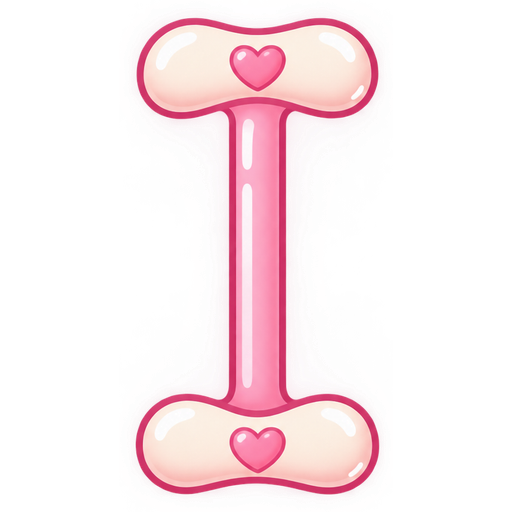


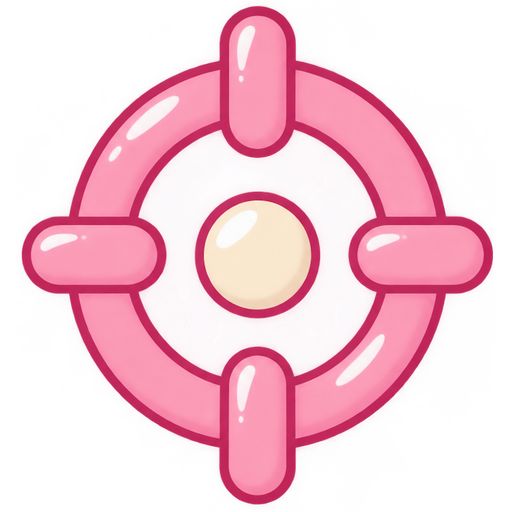

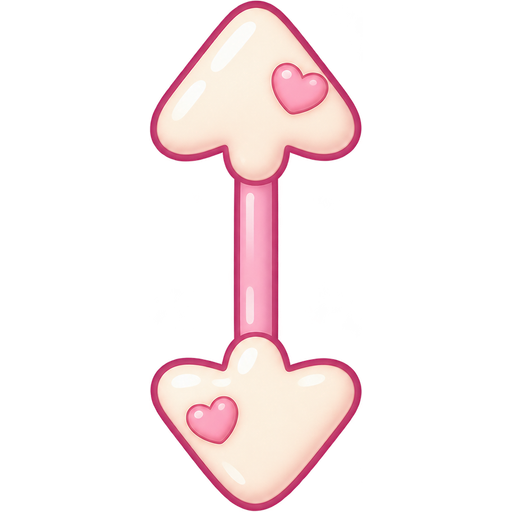
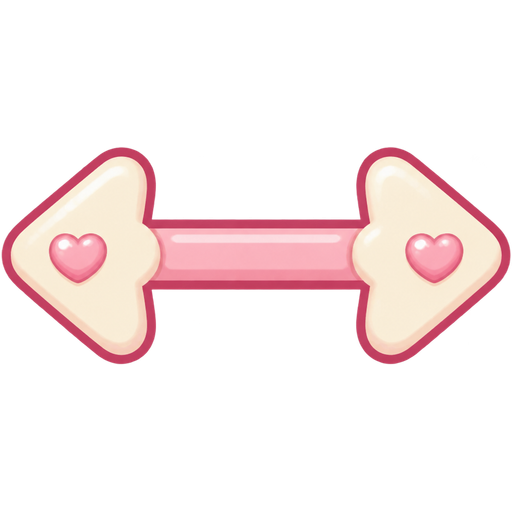


What you get in the Kawaii Pastel pack
Ten separate .cur files, one for each Windows cursor state: Normal Select, Text Select, Link Select, Busy, Precision Select, Not Allowed, and four rounded resize arrows. Each state keeps the same candy palette and deep-rose keyline, and the click point sits where Windows expects it, so text selection and window resizing feel normal. Every file is exported at 32 px, the size Windows uses for the standard scheme, so what you see in the preview is what the system draws. The zip contains an Install.cmd, a README and all ten cursor files.
Who it is for
Pastel desk setups, kawaii and soft-aesthetic themes, students, streamers and anyone who wants their desktop to feel a little friendlier. The cream highlight gives the glossy look, while the deep-rose outline is what keeps the pink visible on white pages and bright apps. Because every state shares the same jelly highlight and keyline, switching from the arrow to the busy spinner never looks like a different pack. It pairs naturally with pink wallpapers, light IDEs and pastel icon packs.
How to install it on Windows 11
Download the zip and unzip it. Double-click Install.cmd — Explorer restarts once, so the screen flickers; that is expected. Then open Mouse Properties (Win + R, type main.cpl), switch to the Pointers tab, choose Cursorhero Kawaii Pastel from the Scheme dropdown and click Apply. No admin rights and no manual registry work. A step-by-step version lives in our Windows 11 custom cursor guide.
Why the heart and star accents stay chunky
Fine detail is the first thing to turn to mush at 32 pixels, so the accents in this pack are deliberately big and simple: one heart on the arrow, one star on the busy cursor, no glitter and no thin lines. That is also why the outline is a solid deep rose instead of a soft shadow — a shadow would blur into the background. If you want a different pastel combination, the cursor generator can build a matching custom set from a short prompt.
FAQ
Is the Kawaii Pastel cursor pack free?
Yes. It is made by Cursor Hero and free to download — no account, no checkout and no credits. The AI generator is a separate product for custom packs.
Will the pink cursor show up on a white background?
Yes. Each shape has a thin deep-rose outline and a cream highlight, so the silhouette stays visible on white documents, light apps and dark desktops.
Does it work on Windows 10?
Yes. The .cur files and Install.cmd work on Windows 10 and 11. Only the exact wording of the Mouse Properties dialog differs.
Can I get a custom kawaii set with different colours?
Yes. Open the cursor generator and describe the palette you want, for example lavender and cream or mint and peach. It builds a full ten-state set from that prompt.
Download Kawaii Pastel
One zip with ten .cur files, an Install.cmd and a short README. Free, no account, no email required.
More official cursor packs
Monochrome Minimal
Free 10-state black and white cursor pack for Windows 11: flat geometric shapes, solid black with a thin white keyline, crisp at 32 px.
View pack →Neon Plasma
Free 10-state neon cursor pack for Windows 11: holographic cyan and magenta energy over a deep navy core, crisp silhouettes that read at 32 px.
View pack →8-Bit Pixel
Free 10-state pixel cursor pack for Windows 11: blocky 8-bit edges, no anti-aliasing, a tight charcoal, white, red-orange and sky-blue palette.
View pack →CURSORHERO