Free official pack · no account needed
Neon Plasma Cursor Pack for Windows 11
A free, complete ten-state Windows cursor pack in holographic neon. Deep navy-black cores, electric cyan edges and hot-magenta highlights with a few restrained white sparks — a look that fits a dark desktop and a gaming setup without turning into a glowing blob. Every state keeps the same energy language, so the whole pointer set reads as one design.
All ten Windows cursor states
Every state in the pack, previewed on a neutral tile. The zip contains the matching .cur file for each one.
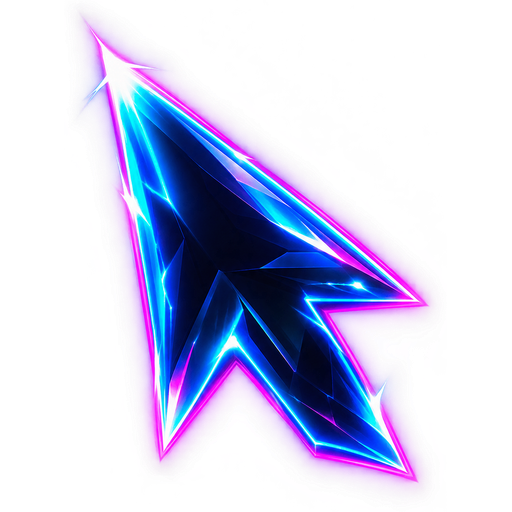
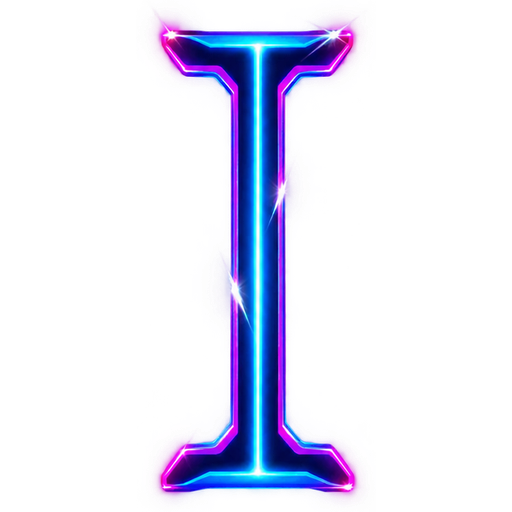
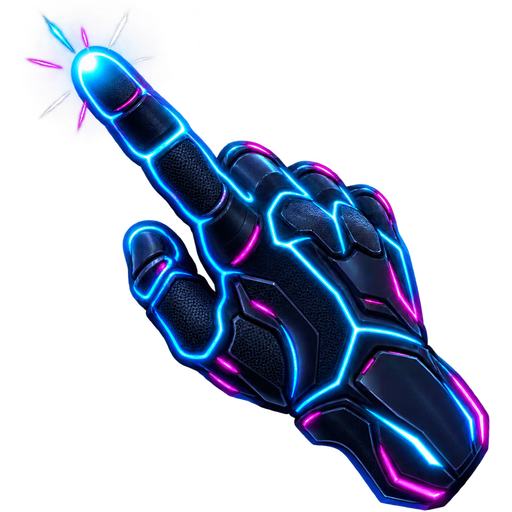
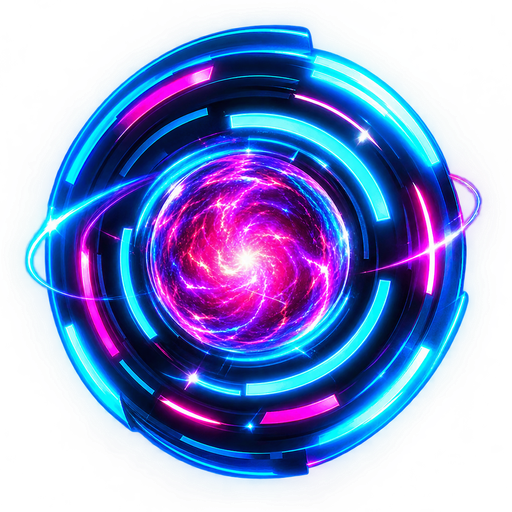
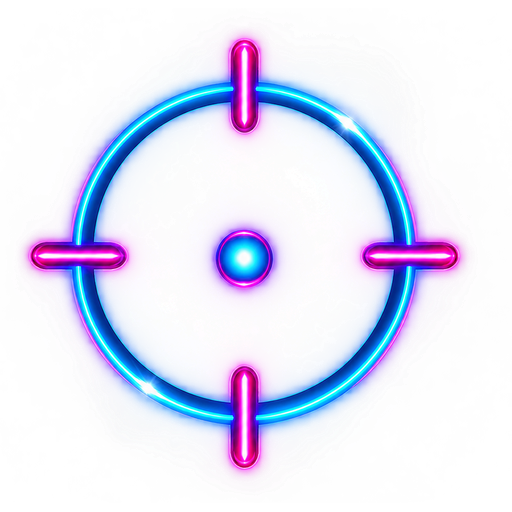
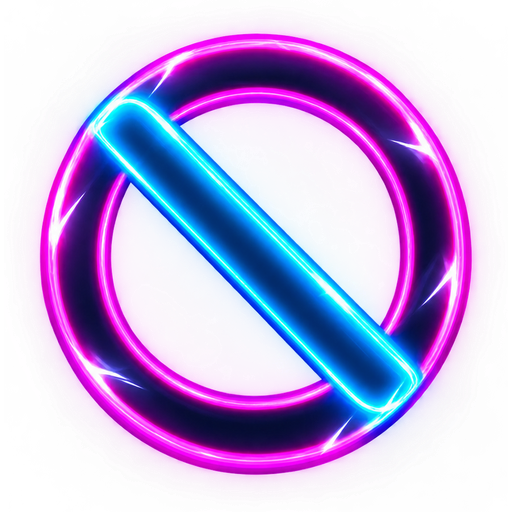
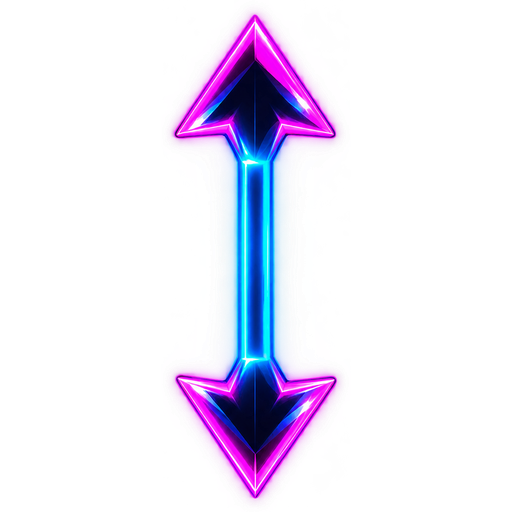
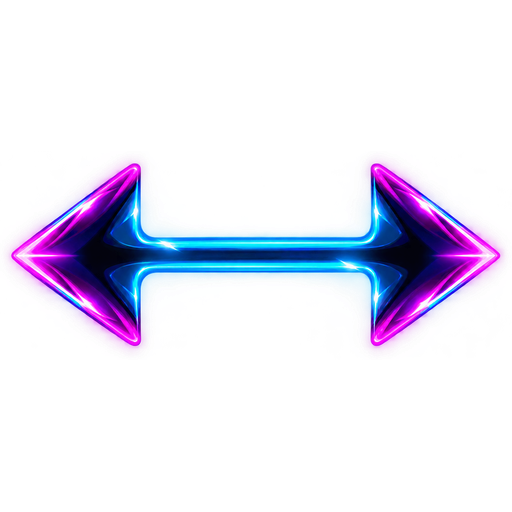
What you get in the Neon Plasma pack
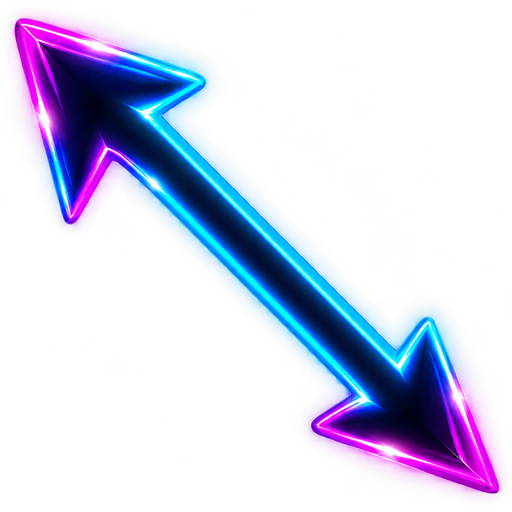
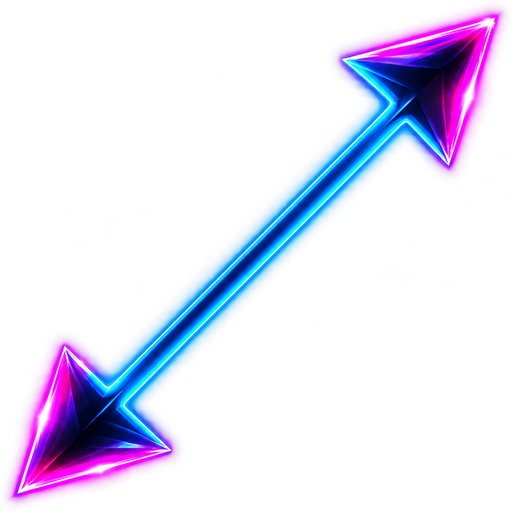
Ten separate .cur files covering all Windows cursor states: Normal Select, Text Select, Link Select, Busy, Precision Select, Not Allowed, and four resize arrows. The busy state is a segmented energy orb, the precision state is a cyan reticle, and the resize arrows use magenta heads with a cyan shaft. Each click point matches the shape, so text carets and window handles still behave normally. Every state is exported at 32 px with a matching hotspot, so the reticle, the busy orb and the resize arrows all click exactly where the shape points. The zip contains an Install.cmd, a README and the ten cursor files.
Who it is for
Dark-mode gamers, cyberpunk and synthwave desktops, night-shift developers and anyone whose wallpaper already glows. The navy core keeps the cursor from washing out on light pages, and the cyan edge is what makes it pop on a dark background. Bright magenta appears in small accents rather than large fills, which keeps the set lively without turning every pointer into a light source. It pairs well with RGB peripherals, neon icon packs and OLED-friendly dark themes.
How to install it on Windows 11
Download the zip and unzip it anywhere. Double-click Install.cmd — Explorer restarts once, so the screen flickers briefly. Then open Mouse Properties (Win + R, type main.cpl), switch to the Pointers tab, select Cursorhero Neon Plasma and click Apply. No administrator rights and no manual registry edits. The step-by-step version is in our Windows 11 custom cursor guide.
Why the glow stays readable
Neon artwork usually fails at 32 pixels because thin glow lines disappear and the whole cursor turns into a bright smudge. This set uses a solid dark body with a bright rim instead of an all-over glow, and the white sparks are large enough to survive the downsample. The same idea applies to a custom set: describe the palette and let the cursor generator build all ten states in one consistent style.
FAQ
Is the Neon Plasma cursor pack free?
Yes. It is made by Cursor Hero and free to download — no account, no checkout and no credits. The AI generator is a separate product for custom packs.
Will a neon cursor distract while I work?
The glow is limited to the rim and a few sparks, and the body stays dark, so it reads as a crisp edge rather than a bright light. If you want something quieter, try the Monochrome Minimal pack.
Does it work on Windows 10?
Yes. The .cur files and Install.cmd work on Windows 10 and 11; only the exact Mouse Properties wording differs.
Can I get a matching custom neon set?
Yes. Open the cursor generator and describe the colours you want, for example cyan and lime or purple and orange, and it builds a full ten-state pack.
Download Neon Plasma
One zip with ten .cur files, an Install.cmd and a short README. Free, no account, no email required.
More official cursor packs
Monochrome Minimal
Free 10-state black and white cursor pack for Windows 11: flat geometric shapes, solid black with a thin white keyline, crisp at 32 px.
View pack →Kawaii Pastel
Free 10-state kawaii cursor pack for Windows 11: glossy pastel pink and cream shapes with chunky heart and star accents and a deep-rose outline.
View pack →8-Bit Pixel
Free 10-state pixel cursor pack for Windows 11: blocky 8-bit edges, no anti-aliasing, a tight charcoal, white, red-orange and sky-blue palette.
View pack →CURSORHERO